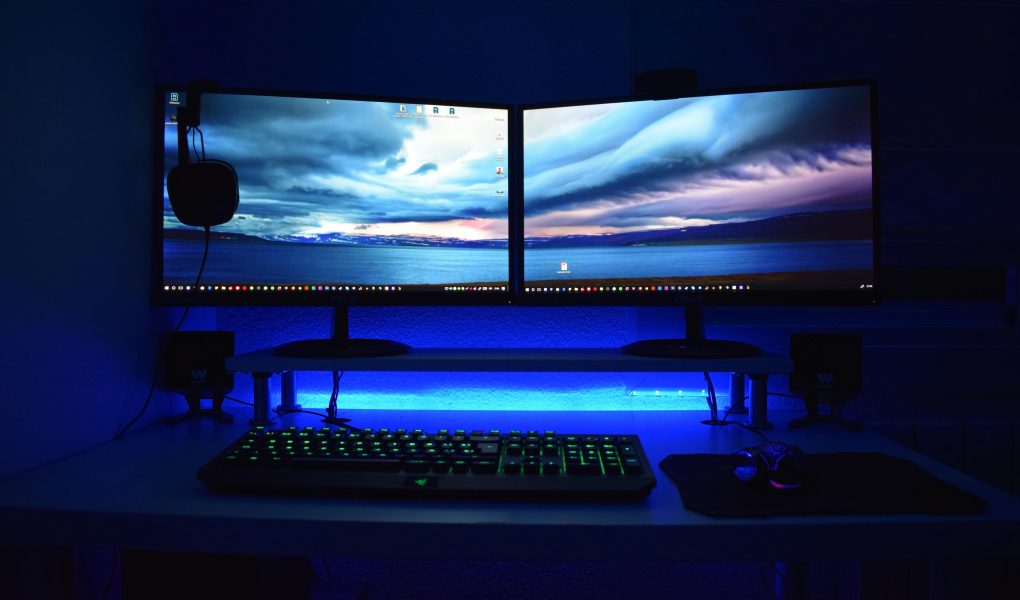
Are you tired of constantly switching between windows on your single monitor? Do you find yourself squinting to see details or struggling to manage multiple tasks at once? If so, it might be time to consider upgrading your workspace with a dual monitor setup. Dual monitors can significantly enhance your productivity, especially if you’re working on tasks that require multitasking, such as editing, coding, or content creation. In this article, we’ll explore the benefits of dual monitors, how to choose the right monitors for your setup, and step-by-step instructions to get everything up and running smoothly.
Why Dual Monitors?
Before diving into the setup process, it’s essential to understand why a dual monitor system can be a game-changer for your workflow. The primary advantage of using two monitors is the increased screen real estate, which allows you to view multiple applications or documents simultaneously without minimizing or resizing windows. This can lead to faster task switching, improved organization, and ultimately, higher productivity.
For instance, imagine working on a project where you need to reference a spreadsheet while drafting a report in a word processor. With a dual monitor setup, you can place the spreadsheet on one screen and the report on the other, eliminating the need to constantly switch between windows. Similarly, if you’re a gamer, you can use one monitor for the game itself and the other for streaming, chat, or even a second game window for split-screen multiplayer. The possibilities are endless, and the benefits are clear.
- Increased Productivity: Multitasking becomes more efficient as you can dedicate each screen to a specific task.
- Improved Workflow: Having more space to work allows you to keep important tools and references within easy reach.
- Ergonomic Benefits: Reduced eye strain and neck strain from not having to constantly move your head or eyes between windows.
- Enhanced Gaming Experience: More immersive gaming with split-screen setups or dedicated task windows.
Choosing the Right Monitors
Now that you’re convinced a dual monitor setup is worth it, the next step is selecting the right monitors for your needs. There are several factors to consider, including resolution, panel type, screen size, and compatibility with your computer.
Resolution and Panel Type
Resolution is a crucial factor when choosing monitors. If you’re working on detailed tasks like graphic design or video editing, a higher resolution (1440p or 4K) would be ideal. However, for general productivity tasks like browsing, writing, or coding, a 1080p resolution is more than sufficient and often more affordable. When it comes to panel types, TN panels are great for gaming due to their fast response times, while IPS panels offer better color accuracy and viewing angles, making them better suited for professional work.
Screen Size and Compatibility
Screen size depends on your workspace and personal preference. A 24-inch monitor is a good starting point for most users, but larger screens like 27-inch or even 32-inch can provide more space for multitasking. Ensure that your monitors are compatible with your computer’s graphics card. Most modern computers support dual monitors via HDMI, DisplayPort, or DVI ports. Check your graphics card’s capabilities to determine if you need additional adapters or cables.
- Consider Your Use Case: Gaming, productivity, or creative work will influence your monitor choices.
- Check Connection Ports: Ensure your monitors and graphics card support the same interface.
- Look for Consistent Colors: If you’re working with color-sensitive tasks, choose monitors with similar color profiles.
- Ergonomic Features: Look for monitors with adjustable stands for better positioning and comfort.
Setting Up Your Dual Monitor System
Once you’ve selected your monitors, it’s time to set them up. The process can vary slightly depending on your operating system and hardware, but the general steps remain the same. Here’s a guide to help you through the setup process:
Hardware Setup
Start by placing your monitors on your desk. Ideally, they should be positioned side by side at the same height to avoid neck strain. Connect each monitor to your computer using the appropriate cables. If your graphics card has two ports, connect each monitor directly. If you only have one port, you can use a display splitter or a docking station to connect both monitors. Ensure the cables are securely plugged in and that the monitors are powered on.
Software Configuration
After connecting the monitors, you’ll need to configure them in your operating system. On Windows, right-click on the desktop and select “Display settings.” Here, you can adjust the orientation, resolution, and position of each monitor. You can also set up how windows are arranged across both screens. On macOS, go to “System Preferences” and select “Displays.” Use the “Arrangement” tab to position your monitors correctly and adjust settings like resolution and orientation.
- Adjust Settings: Ensure both monitors have the same resolution and color settings for a seamless experience.
- Positioning: Align the monitors so that they form a natural extension of your workspace.
- Test for Issues: Check for any color discrepancies or ghosting between the two screens.
- Customize Your Workflow: Use keyboard shortcuts or software tools to maximize your productivity across both monitors.
For Linux users, the process is similar but may require additional drivers or software depending on your distribution. Tools like xrandr can help you configure your monitors and set up custom arrangements.
Advanced Tips for Maximizing Your Dual Monitor Setup
Now that your dual monitor system is up and running, it’s time to optimize it for maximum productivity. Here are some advanced tips to make the most out of your setup:
Organize Your Workspaces
Take advantage of the extra screen space by organizing your workspaces effectively. Dedicate one monitor to primary tasks like writing or coding, while using the other for reference materials, email, or multitasking. This way, you can keep your workflow focused and avoid distractions.
Use Custom Shortcuts
Many operating systems and applications allow you to set up custom shortcuts to move windows between monitors or maximize them on either screen. For example, on Windows, you can use the keyboard shortcut “Windows + Shift + Left/Right Arrow” to move windows between monitors. On macOS, you can use “Command + Option + D” to show/hide all windows and quickly move them to the other screen.
Consider Ergonomics
While a dual monitor setup can boost productivity, it’s essential to consider ergonomics to avoid discomfort or strain. Position your monitors so that they are at eye level and approximately arm’s length away. Use monitor stands or arms to adjust the height and angle of your screens for optimal comfort. Additionally, ensure that your desk and chair are set up ergonomically to support proper posture and reduce the risk of injury.
By following these tips, you can create a dual monitor setup that not only enhances your productivity but also ensures your comfort and well-being throughout the day.
Conclusion
A dual monitor setup is a powerful tool that can revolutionize the way you work and play. Whether you’re a professional looking to streamline your workflow or a gamer seeking to immerse yourself in split-screen action, dual monitors offer a versatility that single monitors simply can’t match. With careful selection, proper setup, and optimization, you can create a workspace that maximizes efficiency and minimizes strain.
If you’re ready to take the plunge into the world of dual monitors, start by assessing your needs and choosing monitors that align with your goals. Follow the setup instructions carefully, and don’t hesitate to tweak your configuration to suit your preferences. Soon, you’ll wonder how you ever managed with just one screen!