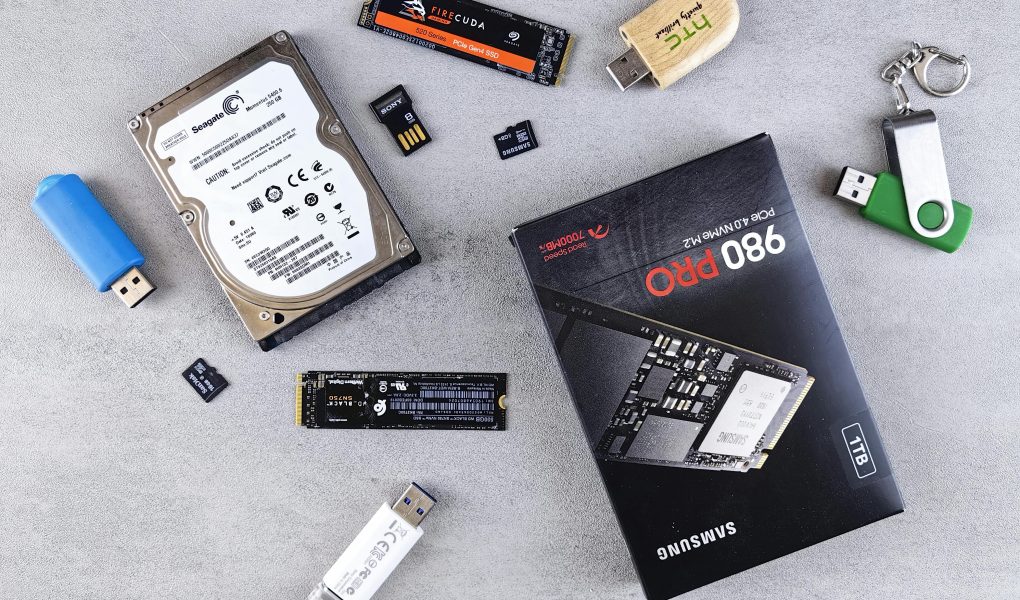
When it comes to enhancing your computer’s performance, two of the most common upgrades you can consider are adding more RAM (Random Access Memory) or replacing your traditional HDD (Hard Disk Drive) with an SSD (Solid State Drive). Both upgrades can significantly improve your system’s speed and efficiency, but they do so in different ways. In this article, we’ll explore the differences between upgrading RAM and SSD, when each upgrade is beneficial, and how to decide which one suits your needs best.
Understanding RAM: The Key to Multitasking
RAM is often referred to as the “brain” of your computer because it plays a crucial role in how your system handles multiple tasks simultaneously. Think of RAM as temporary storage where your computer keeps the data it’s currently working on. The more RAM you have, the more tasks your computer can handle at once without slowing down. For example, if you’re running a video editing software, browsing the web, and streaming music, your computer needs sufficient RAM to manage all these processes smoothly.
Why Upgrade RAM?
Upgrading your RAM can lead to a noticeable improvement in system responsiveness, especially if you’re dealing with memory-intensive tasks. Here are some scenarios where adding more RAM would be beneficial:
- Heavy multitasking: If you frequently switch between multiple applications, upgrading RAM can help your system run them more efficiently.
- Video editing and graphic design: These tasks require a lot of memory to handle large files and complex operations. More RAM can prevent lag and crashes.
- Gaming: Modern games demand a significant amount of RAM to run smoothly. Upgrading can enhance your gaming experience by reducing stuttering and improving frame rates.
- Software development: Compilers, debuggers, and multiple IDEs (Integrated Development Environments) consume a lot of memory. More RAM can speed up your workflow.
Before upgrading, it’s essential to determine how much RAM your system currently has and how much it’s using. You can check this by using built-in tools like Task Manager on Windows or Activity Monitor on macOS. If your RAM usage consistently hovers near the maximum capacity, it’s a clear sign that an upgrade is needed.
Exploring SSDs: The Secret to Faster Boot Times
While RAM improves multitasking and overall performance, an SSD primarily enhances the speed at which your computer accesses and stores data. Unlike traditional HDDs, which rely on spinning disks to read and write data, SSDs use flash memory, making them much faster and more reliable. An SSD can drastically reduce boot times, speed up file transfers, and make your applications launch faster. For instance, if you’re tired of waiting minutes for your system to boot up, an SSD upgrade could cut that time down to just a few seconds.
Why Upgrade to an SSD?
Replacing your HDD with an SSD is a fantastic way to breathe new life into an older computer or simply improve the performance of a new one. Here are some situations where an SSD upgrade would be advantageous:
- Slow boot times: If your computer takes ages to start up, an SSD can make the boot process much quicker.
- Long application launch times: Applications like video editors, games, or even productivity tools can launch faster with an SSD.
- Enhanced file transfer speeds: Moving large files between directories or external drives will be significantly faster.
- Improved system reliability: SSDs have no moving parts, making them less prone to failure compared to HDDs.
If you’re considering an SSD upgrade, it’s worth noting that not all SSDs are created equal. Factors like storage capacity, read/write speeds, and brand reputation play a role in determining the best option for your system. For example, NVMe SSDs are faster than SATA SSDs, but they may come at a higher price point.
RAM vs. SSD: Which Upgrade Should You Prioritize?
Now that you understand the basics of RAM and SSD upgrades, the question is: which one should you prioritize? The answer depends on your specific needs and how you use your computer. Let’s break it down further:
RAM Upgrades: Ideal for Heavy Workloads
If your computer is struggling to handle multiple tasks simultaneously or you’re running into performance bottlenecks while working with large files or applications, upgrading your RAM is likely the solution you need. For instance, if you’re working on a project that requires you to have several browser tabs open, a word processor, and a spreadsheet all at once, more RAM will ensure your system doesn’t lag or become unresponsive. The general rule of thumb is that 8GB of RAM is the minimum for most users, while 16GB or more is recommended for power users and professionals.
SSD Upgrades: Best for Speed and Reliability
On the other hand, if your computer is slow because it’s taking too long to boot up, load applications, or transfer files, an SSD upgrade would be more beneficial. An SSD can make your system feel like new again, even if it’s a few years old. For example, if you’re a gamer who’s tired of waiting for your game to load after each update, an SSD can significantly reduce that wait time. Similarly, if you’re a professional who needs quick access to large datasets or multimedia files, an SSD will provide the speed boost you’re looking for.
Combining Both Upgrades for Optimal Performance
In some cases, upgrading both your RAM and SSD may be the best approach. For instance, if your computer is both slow in launching applications and struggles with multitasking, investing in both upgrades could provide a comprehensive performance boost. However, it’s essential to assess your budget and priorities. RAM upgrades are generally more affordable than SSDs, but the cost can vary depending on the capacity and type of RAM you choose. If you’re on a tight budget, you might want to start with RAM and then consider an SSD later.
Another factor to consider is the size of your current storage and the amount of RAM you have. If your system has a small HDD (e.g., 500GB) and you’re running out of space, upgrading to a larger SSD (e.g., 1TB) could solve two problems at once: increasing storage capacity and improving performance. Conversely, if you have ample storage but your system feels sluggish when running multiple applications, adding more RAM might be the way to go.
Conclusion
Upgrading your computer’s RAM or SSD is a great way to enhance its performance, but the choice between the two depends on your specific needs. RAM upgrades are ideal for improving multitasking and handling memory-intensive tasks, while SSD upgrades are perfect for boosting speed and reliability. If you’re experiencing both slow performance and memory issues, consider combining both upgrades for the best results. However, always start by assessing your current system usage and determining which upgrade will have the most significant impact on your daily tasks. By making an informed decision, you can ensure your computer runs smoothly and efficiently for years to come.